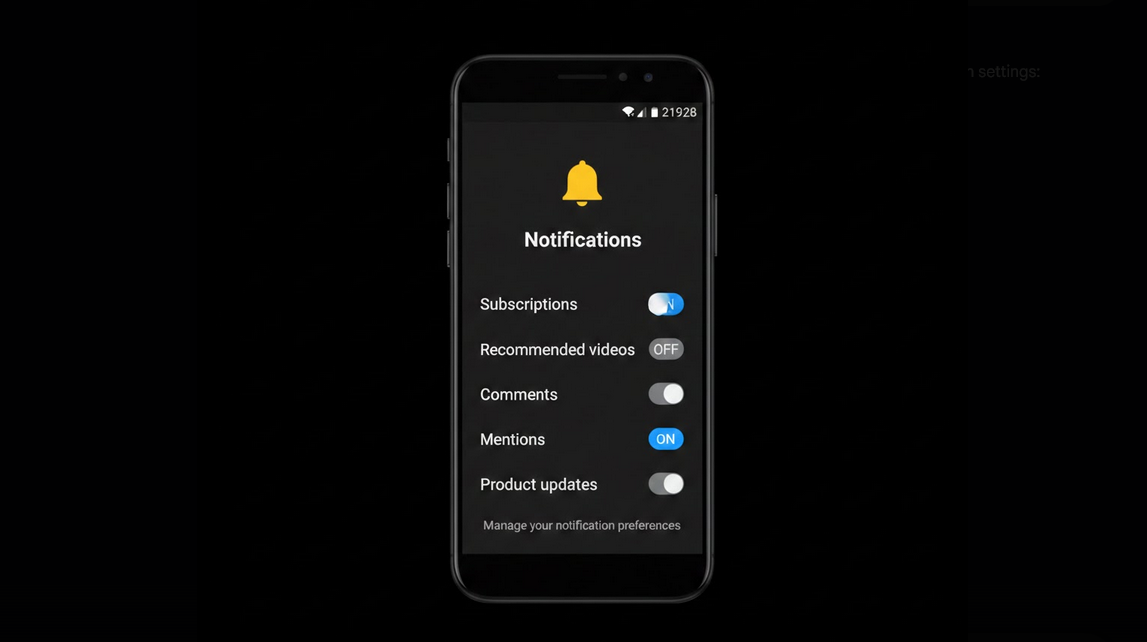
YouTube notifications can be caused by different triggers like new videos, recommendations, comments, promotions, live stream, etc. There are a lot of notifications and they can become too much so that they start becoming annoying. Understanding how to manage notifications will help to prevent getting dozens of notifications per day from subscriptions, recommendations, promotions, etc.
YouTube Notification Categories
There are several types of notifications in YouTube:
- Subscription Uploads – notifications about uploads from your subscriptions;
- Recommended Videos – recommendations from YouTube depending on your watching history;
- Comments and Replies – notifications about replies to your comments or mentions you;
- Live Streams – notifications about live streams from your subscriptions;
- Product Updates – notifications about product updates and new features from YouTube;
- Reminders – notifications about upcoming premieres and events.
Opening Notifications Settings
Inside YouTube Application – tap on your avatar icon, switch to Settings tab and then tap on Notifications;
Android Settings – go to Settings menu, select Apps & notifications, select YouTube app and then switch to Notifications tab.
Notification Management inside YouTube Application
YouTube application allows managing each notification type separately in its own settings.
- Subscriptions – you can choose whether you want to be notified about all uploads, personalized uploads or do not get any notifications at all;
- Recommended Videos – you can turn off this type of notifications in order to stop getting recommendations in your notification shade;
- Activity on my Channel – you can turn on/off notifications about comments, likes and milestones;
- Replies to Comments – you can turn on/off notifications about replies to your posts;
- Scheduled Digest – you can send daily/weekly digest emails instead of push notifications;
- Disable All – you can turn off all YouTube notifications with just one tap.
- Per-Channel Notifications Settings
You can set notification settings individually for each of your subscriptions.
All notifications – the bell icon will be enabled and you will be notified about each upload from this channel. Appropriate only for your favorite channels;
Personalized – YouTube will choose what to notify you about. This is default setting for all subscriptions;
None – you will not get any push notifications but still you will have access to content in your subscription feed.
YouTube Notifications Settings in YouTube Vanced
YouTube Vanced supports all types of notification settings like YouTube application. You can disable types of notifications, configure per-channel settings and adjust delivery methods. With the help of Vanced adblocker you will not get any promotions in your notification shade. Your notification settings will be synced via Vanced MicroG using your Google account.
It is necessary to exclude MicroG from battery optimization in Android Settings because it prevents background processes and leads to the delay/block of YouTube notifications delivery.
Notification Management Tips
Disable Recommendations – this will help to greatly reduce the amount of notifications;
Limit All-Notifications Channels – use All bell icon only for your top 5-10 channels;
Digest mode – use digest mode instead of immediate notifications;
Periodical check – check your notification settings once a month and adjust them to your needs;
System Notification Settings – use Android notification categories to mute some notifications.
Who Will Benefit from Notification Management?
Heavy Subscribers – people subscribed to many channels and receiving lots of notifications every day;
Focus-Oriented People – people who do not want to be distracted by alerts while working or studying;
Battery Saver – people who need to limit background processes and save battery;
Organized Viewers – people who prefer visiting YouTube when they want.
Conclusion
Notifications management is one of the most important aspects of distraction-free mobile experience. Just spending few minutes configuring your alerts and disabling unnecessary notifications will greatly help to change your experience using YouTube. Using YouTube Vanced you are guaranteed to receive content-based alerts without any promotional content.